
How to switch from Booksy to Terminka: client list, booking link and cancelling
Exporting your client list from Booksy, migrating to Terminka, a new booking link and a message for your clients. Switching Boost off and cancelling come last, in that order.
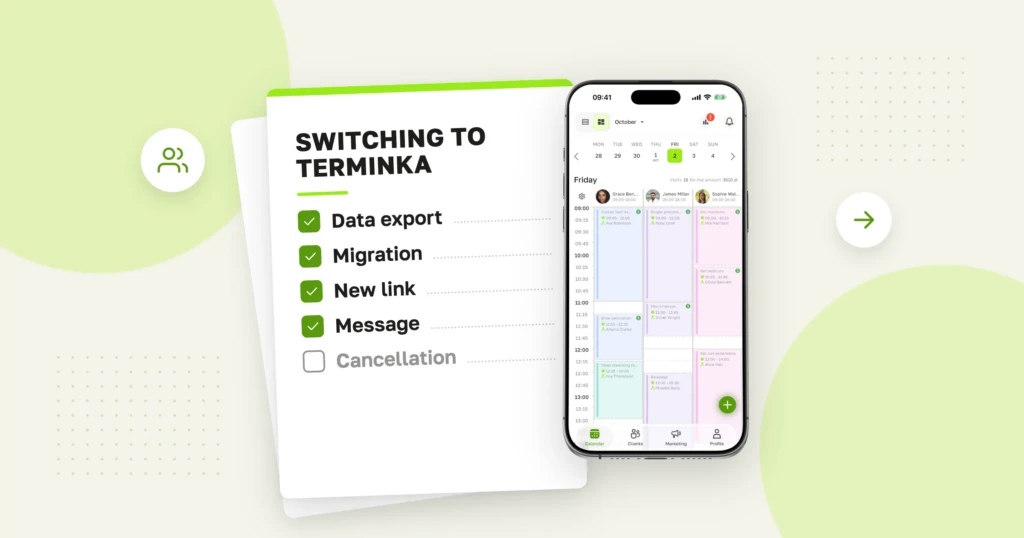
This guide takes you through moving from Booksy to Terminka in an order that keeps your data and your diary safe: first the client list export, then the migration and a new booking link, and only at the end cancelling the contract. Appointments already booked in Booksy go ahead as normal, and for a few weeks you can run both calendars side by side.
Information about Booksy: as of 10 October 2026, based on the Booksy help centre and the Booksy Biz terms (both in Polish). We compare the prices and commission of both systems on the Terminka vs Booksy page.
The move in 6 steps
- Ask Booksy for a data export.
- Send the file to Terminka and check your services and opening hours.
- Put your new booking link on Instagram, in Google and on your website.
- Tell your regular clients where to book from now on.
- Run both calendars for a few weeks.
- Switch Boost off and cancel your Booksy subscription.
How to get your client list out of Booksy
According to the Booksy help centre, a data export is requested by email: you write to info.pl@booksy.com from the account owner’s email address. Only the owner can ask for it, and it takes up to 5 business days. The file arrives password-protected. The export can include clients, services, bookings, reviews, products and the list of SMS messages sent.
A short email in Polish is enough:
Dzień dobry, jestem właścicielką konta [nazwa salonu] w Booksy Biz. Proszę o eksport wszystkich danych konta: klientów, usług, rezerwacji i opinii. Pozdrawiam, [imię i nazwisko]
In English: “Hello, I am the owner of the [salon name] account in Booksy Biz. Please export all the account data: clients, services, bookings and reviews.”
Request the export before you cancel. After the contract ends, Booksy releases the data on request for 3 months and then deletes it (Booksy Biz terms, section XI).
What to send us for the migration
Send us the Booksy file exactly as you received it, and the password in a separate message. We move your clients, services and visit history free of charge. We process the data on your behalf under our data processing agreement.
Along with the file, prepare:
- a list of the people on your team and their working hours,
- holidays and days off for the coming weeks,
- one sentence on your cancellation rules.
Services and schedule
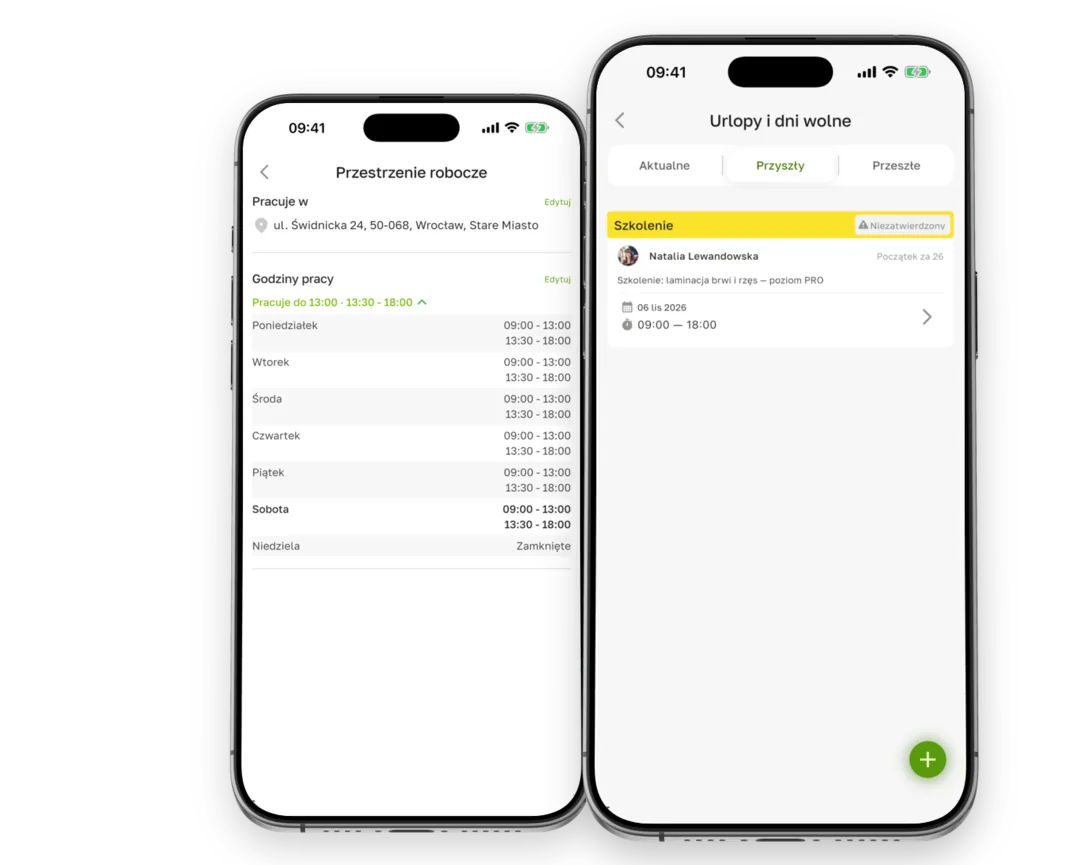
After the migration, go through your services: names, prices and durations. Enter the time a treatment really takes, including getting the station ready, because the calendar works out free slots from it. Then check each person’s working hours and add holidays. We describe the order of setup for the first two days in 48-hour rollout.
Your new booking link: Instagram, Google and your website
In Terminka your salon has its own booking page with a link and a QR code. On that page clients see only your salon and your services. Put the link wherever clients look for an appointment:
- in your Instagram bio and in a highlighted story about booking,
- in your Google Business Profile as the booking link,
- on your website and in your email signature.
Then look for places where the old Booksy link is still around: pinned posts, story descriptions, business cards, the QR code at reception.
What to tell your clients
The message should answer two questions: where to book now, and whether an existing appointment still stands. For example:
Hi! From [date], bookings for [salon name] are taken through our new link: [link]. Appointments you have already booked still stand, so there is nothing to change. See you soon!
Send it to your regular clients by SMS or Instagram message and mention it again at their visit. If you send it as a Terminka SMS campaign (from the Solo plan), it only goes to clients who have agreed to marketing messages.
The transition: two calendars
Appointments booked in Booksy go ahead as usual, and you take new ones in Terminka. Block every Booksy appointment in your Terminka calendar, and in Booksy block the hours already taken in Terminka. That way nobody books the same slot twice.
If Boost is on, keep two rules from the Booksy help centre in mind. The commission for a client who booked while Boost was on is charged on the day of the visit, even if you switch Boost off before then. If that client does not turn up, there is no commission only if you mark the no-show in the app on the same day, before 22:00.
Switching Boost off and cancelling the contract
Only the account owner can switch Boost off, by sending a request in the app. One month’s notice applies, and Boost is switched off at the end of the following billing period.
A monthly Booksy subscription is an open-ended contract. Under the Booksy Biz terms you cancel it in writing or by email, with one month’s notice, effective at the end of the following billing period. Fees charged up to then still have to be paid. A long-term subscription (up to 12 months) is paid in advance and is non-refundable. If you do not give notice a month before it ends, it turns into a monthly subscription. To delete the account, write to info.pl@booksy.com.
Because the cancellation takes effect later, it makes sense to send it right after requesting the export. The contract then runs until the end of the following billing period, which is usually enough time to move.
Help with the move
We migrate your data for you free of charge; just get in touch. You can set up the Free plan straight away, with no credit card.
